
Find out whether the problem is the voice or the book
Use Android's speech test, if your device offers one, or try a second plain-text ebook. If both stay silent, check volume, Bluetooth audio routing, the selected TTS engine and downloaded language packs. If only one file fails, examine the document's text.
A PDF scan is not readable text
A PDF can display words and still contain only photographs. Try selecting a sentence. If you cannot, ordinary TTS will need OCR or a text-based edition. Broken reading order in columns or tables can also make otherwise selectable PDF text sound confusing.
Language mismatches can sound like errors
A book written in one language with a voice configured for another may pronounce letters strangely or skip some words. Switch to a matching available language. Mixed-language books are harder; not every engine changes voices automatically inside one paragraph.
Speech stops after the screen locks
Check whether the reader actually supports background playback. Android battery settings may restrict some apps, but do not disable power protection for everything on your phone. Use the app's documented battery setting only if needed, and check whether it requires the notification permission for playback controls on your Android version.
When narration jumps or repeats
Return to a clean paragraph and try again. Large documents, broken page text and reader-specific parsing may cause jumps. Note the file format, exact page and whether the problem repeats with another book. Those details are more useful for support than simply reporting that TTS is broken.
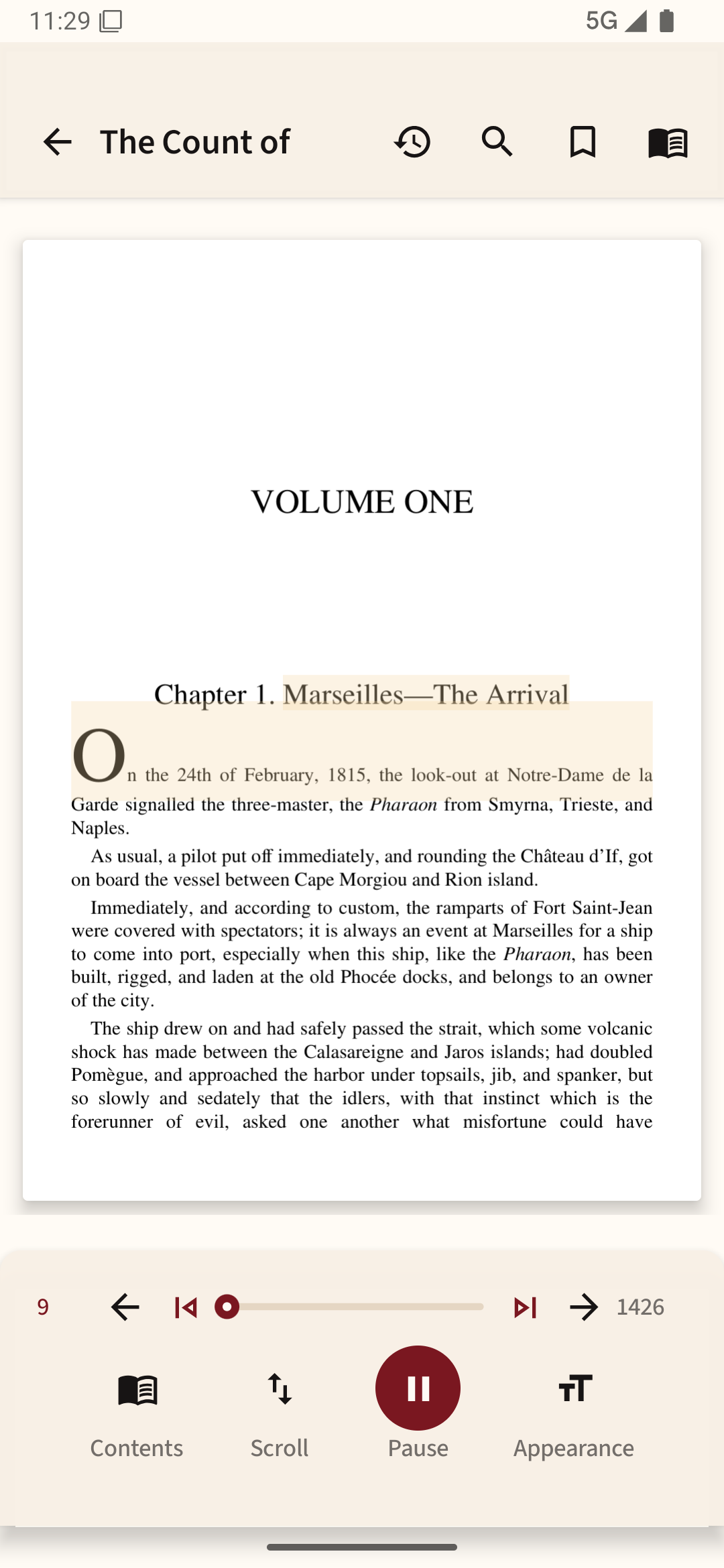
You can use Readream Basic to test a phone-installed voice with a short, text-based document. Keep the app open during the test, and check Android’s voice settings if the same voice fails elsewhere.