
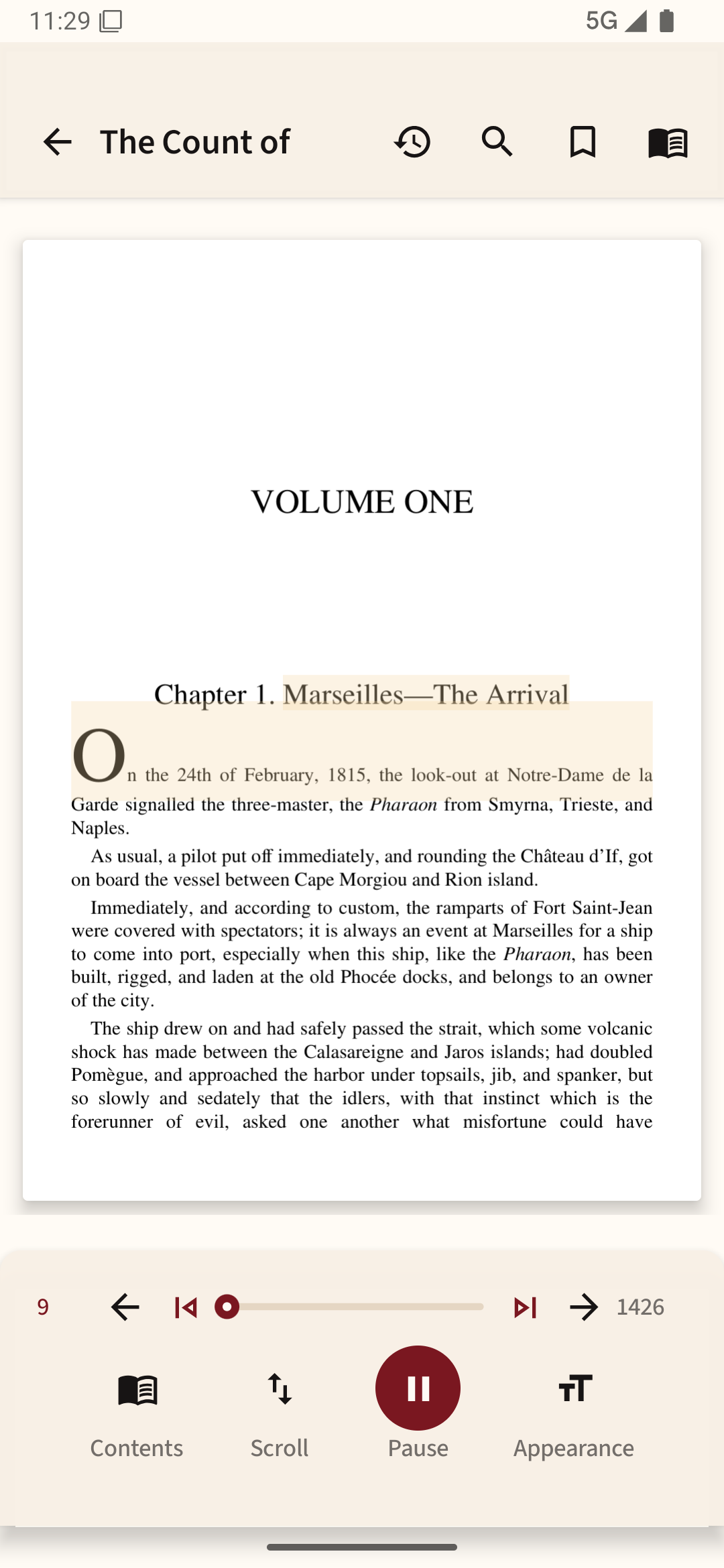
Text-to-speech is not an audiobook
An audiobook contains recorded narration. Text-to-speech, often called TTS, generates speech from text in the file. It can be very useful for your own EPUBs and readable PDFs, but dialogue, abbreviations and unusual names may sound less natural than a human recording.
Prepare a text-based file
Start with an ordinary EPUB or a PDF where you can select a sentence. Open it in a reader that supports continuous narration, select a voice and start from the current page or paragraph. Listen for a chapter break. Some apps stop at a page; others can move through a whole document.
Pick speed by comprehension
Start near the default speed, then increase it in small steps if the voice stays clear. For dense nonfiction, slower speech may help more than a high words-per-minute number. Headphones, phone speakers and car audio all make voices sound different, so test on the device you actually use.
Fix missing or robotic speech
Check Android's Text-to-speech output settings for an installed voice engine and language. A voice advertised by a service may require a separate download. If one document sounds garbled but another reads cleanly, the issue may be the file's text order rather than the engine.
Save a position you can return to
Switching between listening and silent reading is easier when the app tracks a single position. Before a long commute, pause, close and reopen a sample book to see whether it resumes correctly. For EPUBs, use chapter context as well as estimated position; page numbers often change when font settings change.
To try read aloud with a local book, open it in Readream Basic and choose a voice installed on your phone. Keep Basic open in the foreground while you listen.