
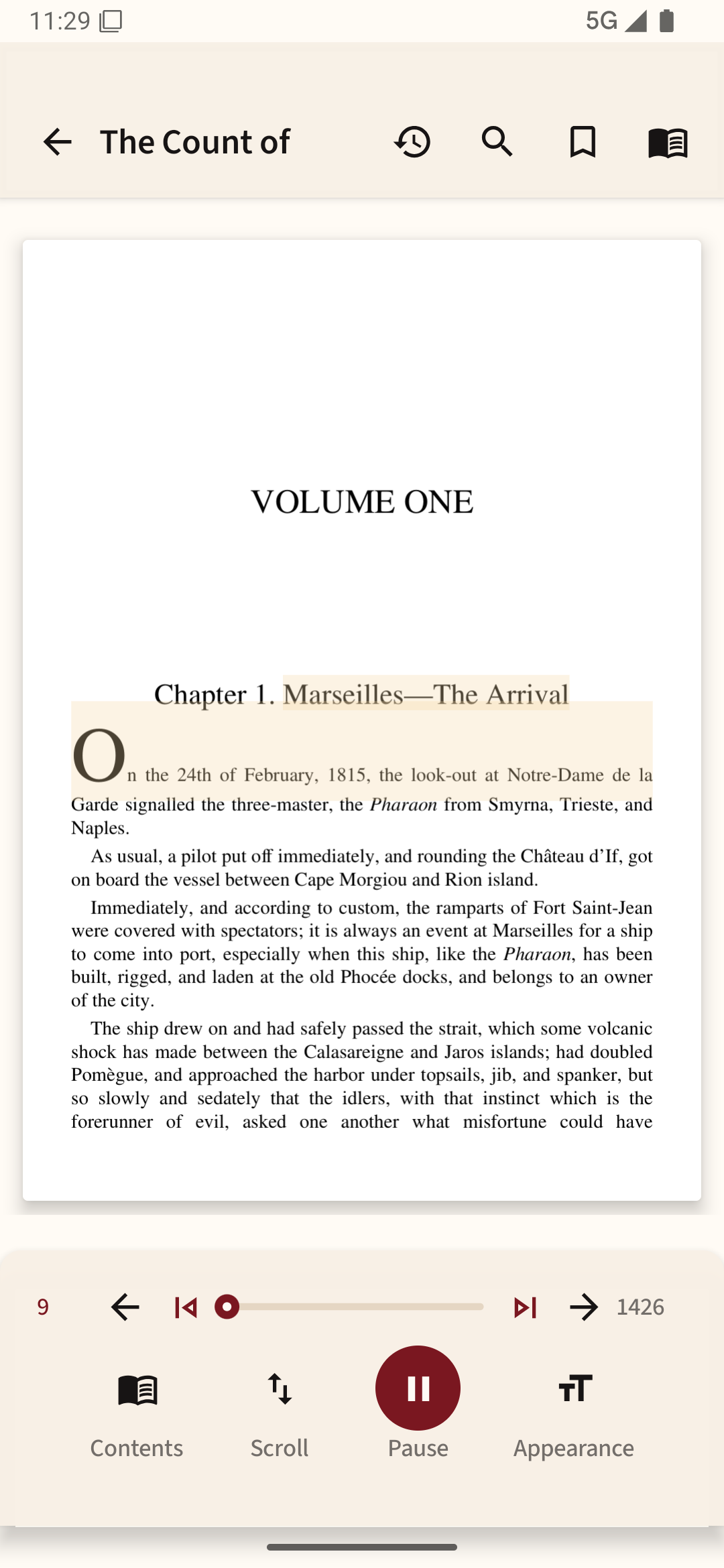
A PDF may contain pictures instead of words
Two PDFs can look identical on screen. In the first, words are stored as text; in the second, each page is a photograph. Search, copying and screen-reader software usually need text data, not just visible shapes.
Try selecting a line or searching for a word you can see. If selection grabs the whole page or search returns nothing, look for OCR support rather than changing the font setting.
What OCR actually does
Optical character recognition attempts to turn shapes in images into machine-readable text. It works best with sharp, straight pages and high contrast. Curved book pages, handwritten notes, unusual fonts and blurred scans produce more mistakes. After OCR, always verify dates, figures and quotations against the original page.
Keep layout and text separate
A good searchable PDF can retain the original page image while adding an invisible text layer. That lets you read the original scan and still search or select words. Exporting a scan directly into editable text can break columns, equations and footnotes, so it is not always the right choice.
Privacy check before uploading
Some online OCR services require the full document to be uploaded. Do not send private records, client documents or unpublished work to a service without understanding its privacy policy. Offline OCR tools may be a safer option for sensitive material.
If OCR is not available, navigation can still improve: use page thumbnails, a manually created bookmark list or page-number references. For a book you expect to narrate, a publisher-provided text EPUB is often a better starting point than OCR of a scanned PDF.
After adding a text layer with an OCR tool, open the resulting PDF in Readream Basic to read it and check the recognized text. Installing a reader alone does not turn an image-only scan into searchable text.