
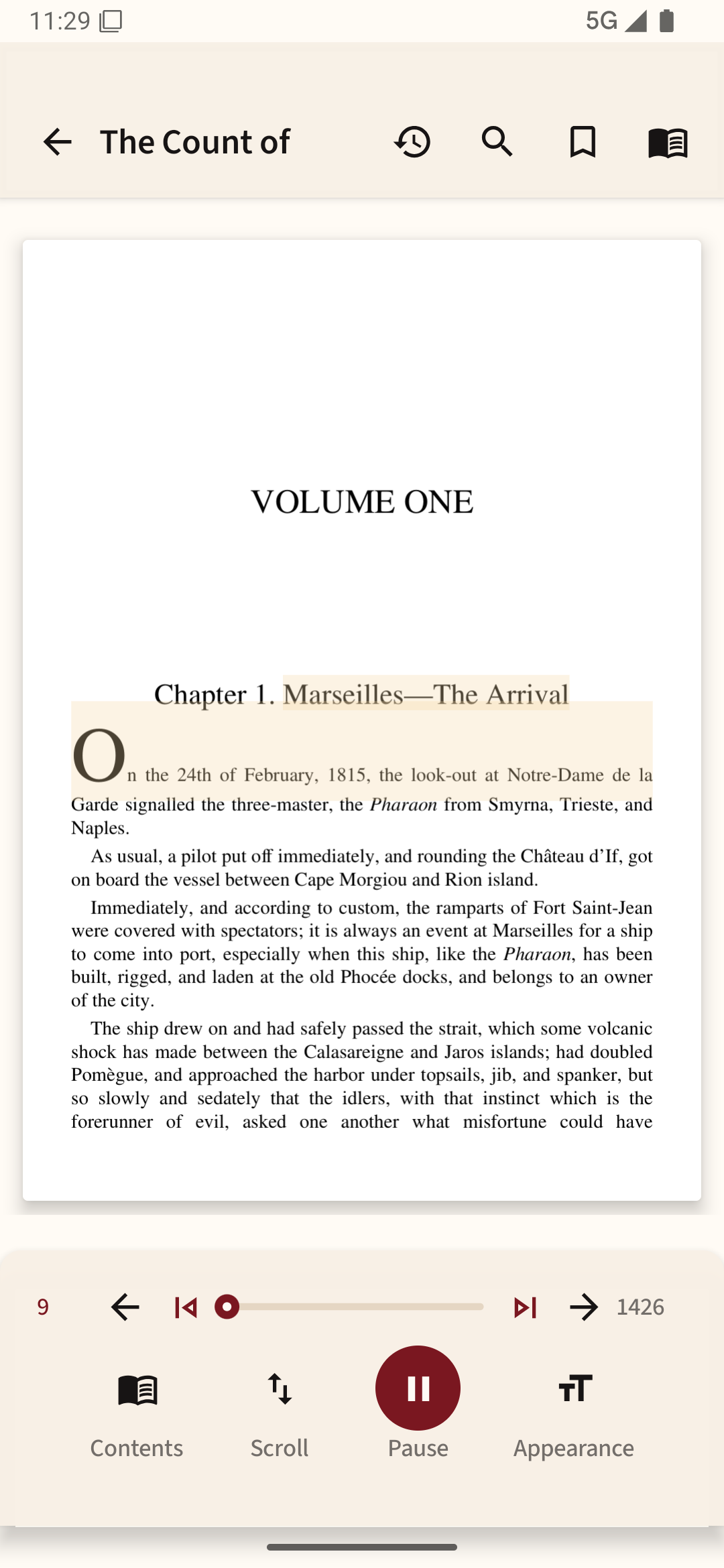
Start with fit-to-width
Open the PDF from Files, Downloads or your reader's import button. If the page looks tiny, use fit-to-width or crop-margins before zooming further. Large white margins often waste most of a phone screen. Rotate to landscape for tables with several columns.
PDF keeps the author's page layout, so a two-column journal paper needs different treatment from a novel. Use continuous vertical scrolling for articles; some people prefer one-page-at-a-time view for textbooks with diagrams and page references.
Search instead of endless scrolling
Tap Search and look for a term that appears in the document. If the search finds text, bookmarks and text selection may work too. If it finds nothing, try selecting a word. A scanned PDF is sometimes just a series of images; it may need optical character recognition (OCR) before search or narration works.
Use the contents or outline panel if the PDF includes bookmarks. For a long manual, jump by heading first and then refine with search. On a phone, pinching through page after page is the slowest way to locate a section.
Keep large books responsive
Wait for a very large document to finish loading before quickly changing pages. If a file lags, test it in another reader and check that your phone has available storage. A 200-page document of compressed text and a 200-page document of high-resolution scans can have very different performance.
Check your reading position
Find a particular page, close the reader and open the file again. It should return to that page or offer recent reading history. If you need precise citations for study, save the PDF page number separately because an app's reflow mode may not preserve the same page layout.
You can try these reading adjustments with your own PDF in Readream Basic. Open a representative page first and check whether its original layout is comfortable on your screen.