
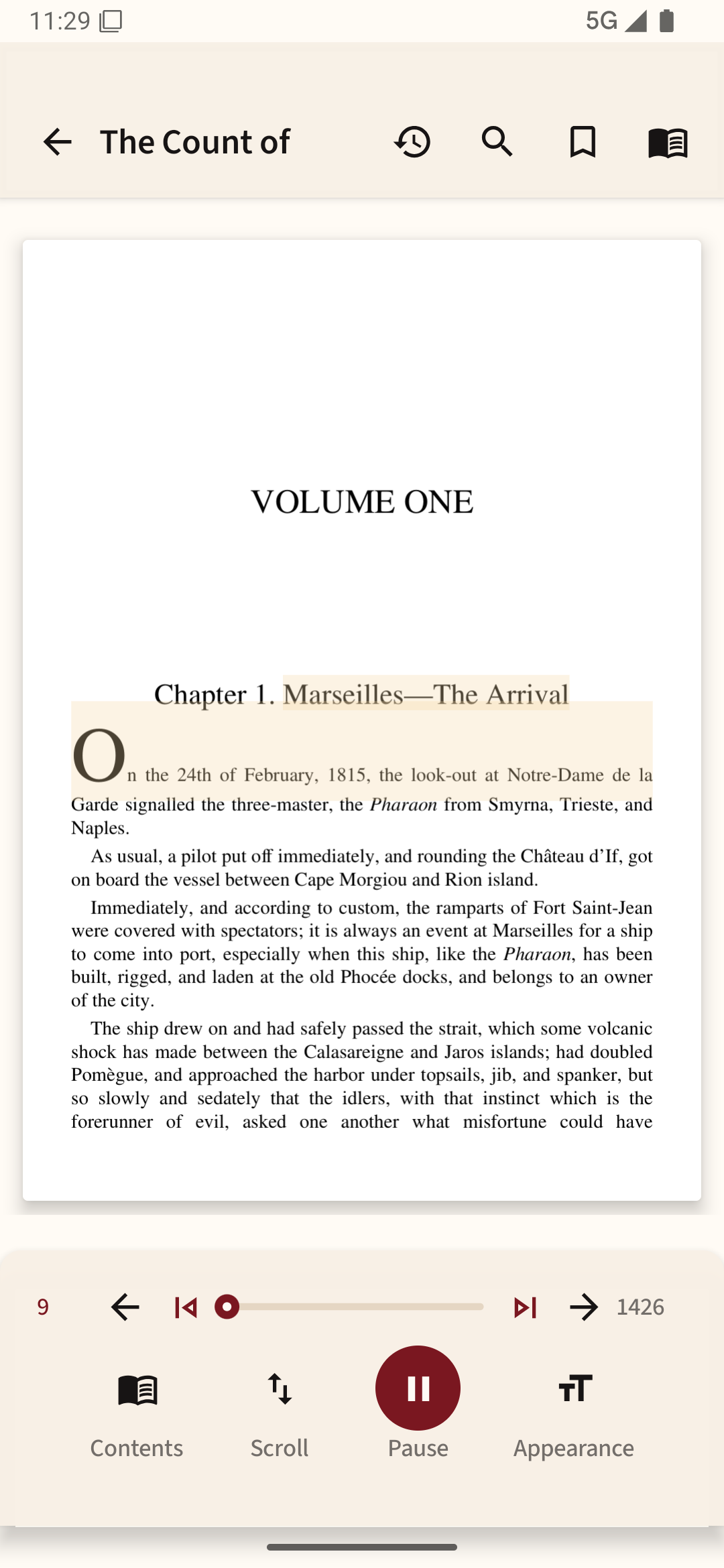
Check whether the PDF contains text
Open the file and try selecting a sentence. If you can select words normally, a compatible app may read them using text-to-speech (TTS). If dragging selects the entire page like a photo, the PDF is probably a scan. A voice engine cannot reliably read printed words inside an image until OCR has recognized them.
Choose a reader with PDF narration
Import the PDF, find its Read aloud or TTS control, and choose the starting position. Names and available buttons differ by reader. Some apps read only a highlighted passage; others continue across pages. Test a heading, a paragraph and a page change before planning a long listening session.
Adjust the voice outside the document
Android normally lets you select or manage speech engines in Settings, often under Text-to-speech output or Accessibility. The exact route changes with device brand and Android version. Choose an installed language and voice, then move speed slightly above or below normal until punctuation and abbreviations sound clear.
Why PDF speech sounds wrong
Multi-column papers may be spoken in the wrong order if the file's text structure is poor. Tables and headers can interrupt a paragraph. Footnotes may appear mid-sentence. Try one representative page before depending on narration for studying; compare the spoken sequence with the page itself.
Listening while moving
Test the screen-lock behavior and headset controls inside your reader. Background audio may stop because of battery restrictions, an app limitation or a missing downloaded voice. If you will be offline, put the file on the phone and confirm that the selected speech voice functions in airplane mode.
For a PDF with selectable text, try read aloud in Readream Basic using a voice installed on your phone. Basic plays while the app stays open; an image-only scan needs usable text before narration can read it.