
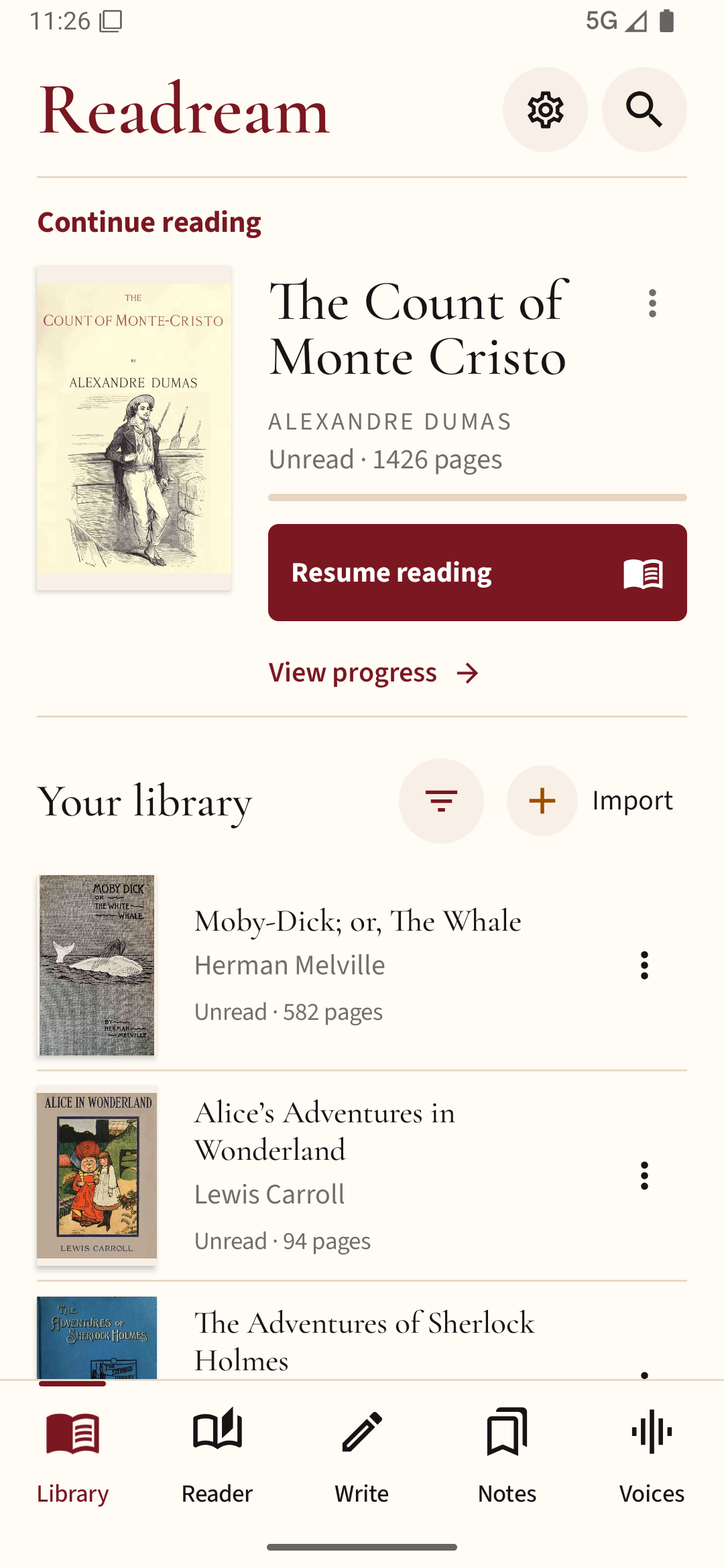
Locate the actual document
Open Android Files and find the EPUB, PDF or comic archive. If a browser downloaded a ZIP package, extract it and look for the book inside. A cover image, webpage shortcut or HTML receipt is not the ebook itself.
Import from the reader
Use Add book, Import or Open file, then choose the system file picker. From there you can browse Downloads, Documents or a connected cloud provider. Android may grant the reader access only to the selected file, which is usually enough for reading that document.
Moving a file can change its path
Some readers copy imported books into their own library; others keep a link to the original location. If you later delete the downloaded file, the book may disappear from an app that was merely referencing it. Test with a sample before cleaning out Downloads.
Check format and permissions
If a book is missing from the file picker, choose the correct file type filter or use Browse to navigate to its folder. Apps cannot always read another app's private storage directory. Copy a permitted file to Documents and try again rather than granting unrelated permissions.
Confirm the import completed
Open the book, turn a few pages and restart the app. Check the title, chapter navigation and saved position. If the same file imports twice, review the reader's duplicate handling before deleting either copy, especially if one contains notes.
To follow this process with your own files, install Readream Basic, import a DRM-free EPUB or PDF, and check that it appears in your library before removing any duplicate downloads.