
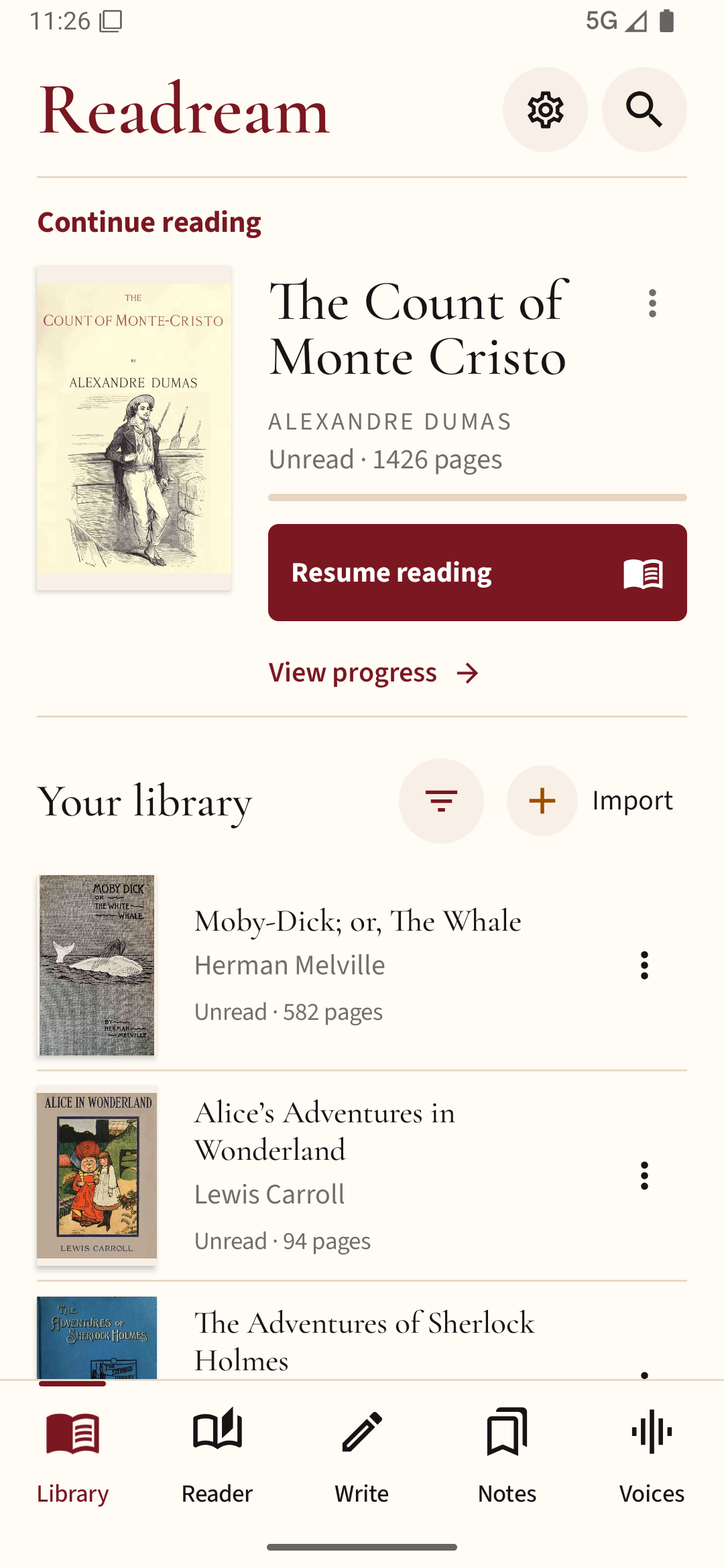
Use the table of contents
Most well-made EPUBs include chapter navigation. Open the contents panel and select a section title instead of scrolling through hundreds of virtual pages. In a PDF, the same feature may be called Outline or Bookmarks, and it only appears if the document creator included it.
Search by distinctive words
A phrase is usually more useful than a common word. If you remember part of a quote, search for three or four uncommon words together. Some readers search only within the current book; others provide a library-wide search. Check which one you are using.
Why search sometimes fails
Scanned PDF pages can look like text but contain only images. Test by selecting a word. An EPUB with unusual formatting or embedded pictures may also hide some words from the normal search index. For scans, OCR can create a searchable text layer, though it needs careful checking for errors.
Return after jumping around
Place a bookmark before moving away from your current section if your reader lacks a Back to previous location control. A reading-progress marker is different from a deliberate bookmark, and searching may change the location the reader saves.
For study references
Record chapter names, quoted words and PDF page numbers. EPUB virtual page counts often shift with font size, which makes them a poor shared citation unless the edition provides stable page references.
For a book with a working contents list, try opening it in Readream Basic and jumping to a chapter by name. Keep a bookmark for any passage you revisit often.