
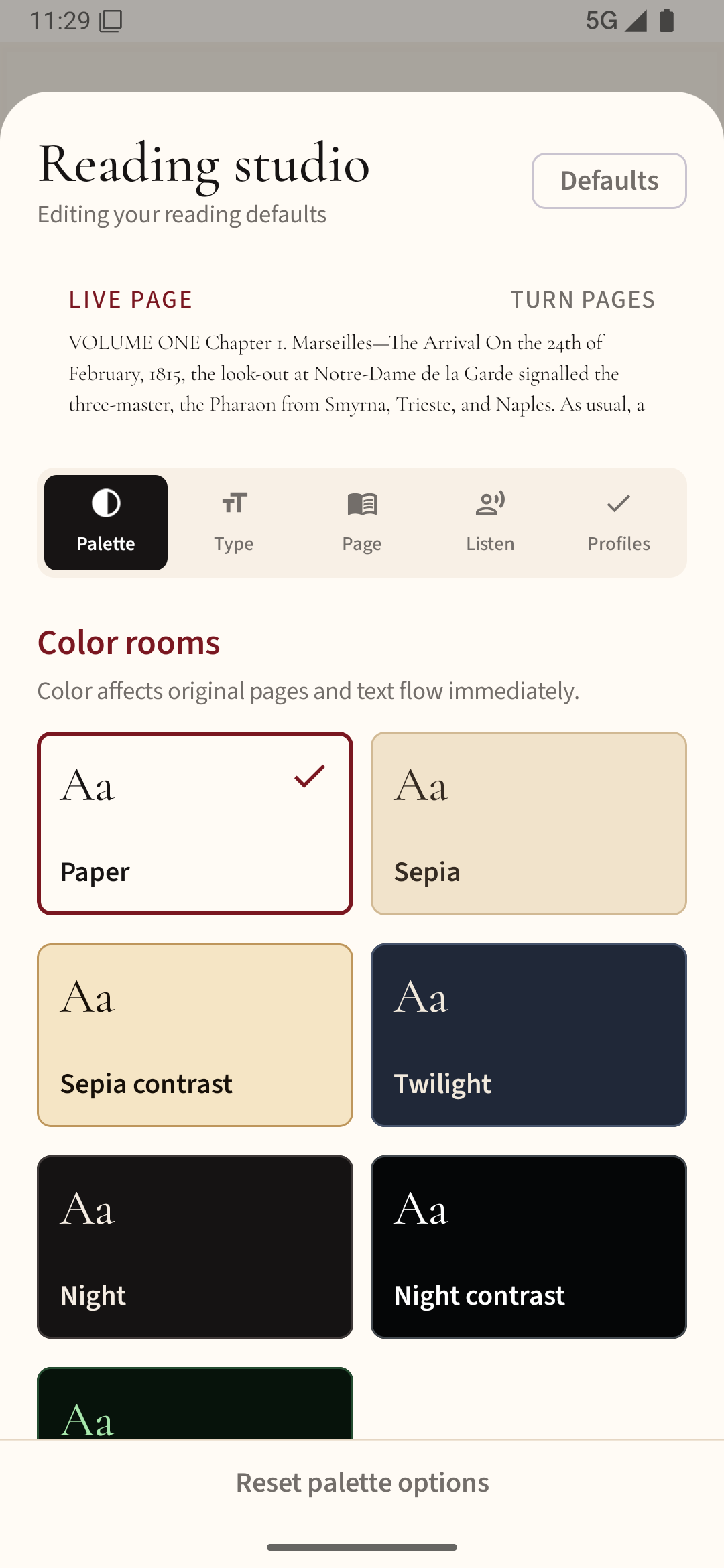
Match the screen to the room
A bright white page can feel harsh in a dark bedroom, while light text on black may be tiring in strong daylight. There is no universal winner. Try a light background outdoors and a lower-brightness warm or dark theme at night; decide by how comfortably you read rather than by a theme name.
Brightness matters separately
Dark mode will not fix an excessively bright screen. Lower the display brightness first, then adjust the reader's page color. A warm background often reduces the contrast jump between a white page and a dim room while keeping dark text clear.
Watch for faint text
Some themes use pale gray text on near-black backgrounds. That may look elegant in a screenshot but can make small punctuation and footnote markers difficult to distinguish. If the letters seem to blur, try a slightly brighter text color, thicker font weight or a light theme with modest brightness.
Check the format
EPUB books often honor a reader's background and text settings. PDFs may keep their original page colors unless the app has a color-inversion or night-mode feature, and inversion can make photos and diagrams look unnatural. Test a page with an image before deciding to use it for an entire textbook.
There is no need to force the same theme all day. Save separate day and night profiles if your reader supports them.
If you want to compare page themes on your own books, try Readream Basic and adjust the reading theme alongside your screen brightness.