
Start with a legitimate, unprotected source
Choose a file you own and have the right to convert. DRM-protected bookstore titles are a separate question from ordinary format conversion; the presence of a file on your device does not remove licensing restrictions.
Prefer reflowable-to-reflowable conversion
A well-structured MOBI or EPUB usually converts more cleanly to another text-oriented ebook format than a fixed-page scan. A PDF with images of pages may need OCR before becoming usable EPUB text, and even then the result requires inspection.
Prepare metadata and structure
Check the source title, author, chapter headings and table of contents. If you use a desktop library manager such as Calibre, edit metadata carefully and keep a backup copy. Converting a poorly structured document can preserve its mistakes rather than repair them.
Inspect more than the first page
Open the result and jump to the middle. Check a chapter break, quotation, table, image caption, footnote and any non-English characters. Increase the font size to see whether text reflows properly. A conversion that displays the cover correctly may still break later chapters.
Keep originals
Store the original file until you have finished reading or thoroughly checked the new one. Renaming .pdf to .epub changes only the label; it does not convert the file. For an image-heavy textbook, leaving the PDF as a PDF may be the better decision.
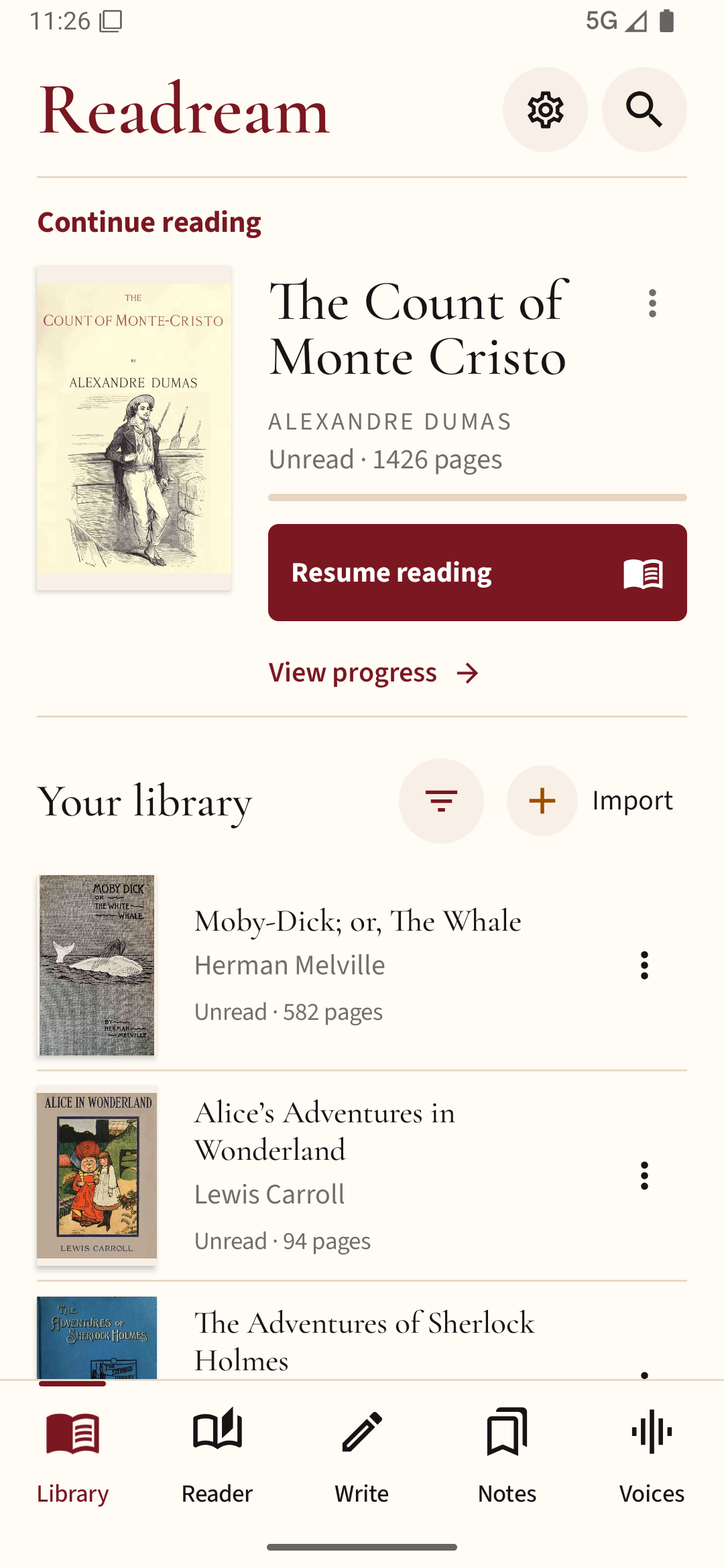
After converting a book to EPUB or PDF, open the result in Readream Basic and compare a few chapters with the original. Check headings and images before replacing your old copy.