
Download the entire book first
A book cover in an app does not always mean the full file is stored locally. Open the book while connected, move to the middle and check that the pages load. If the reader provides an explicit Download or Make available offline control, use it before traveling.
For files you own, copy EPUB and PDF documents into a normal device folder such as Documents or Downloads and import them into a reader that supports local files. Keep an additional backup outside the phone if losing the device would mean losing your library.
Test airplane mode, not just Wi-Fi off
Turn on airplane mode and reopen a downloaded book from a fresh app launch. Try searching, making a bookmark, changing text size and returning to your saved position. These tasks reveal whether a feature depends on a server or works on-device.
Speech and dictionaries are separate downloads
Text-to-speech may depend on a voice pack that is not installed locally. Translation, word lookup and cloud-synced notes may also require a network even when the book itself is available. Download voice data and offline dictionaries first if your app supports them.
Watch for licensing limits
Some subscription services and retailer apps place time limits or account checks on downloads. Those conditions depend on the service, not the EPUB or PDF format alone. Check the app's own offline policy instead of assuming that every purchased or borrowed title will stay available indefinitely.
If a title vanishes after going offline, identify whether the actual file is on your device, whether its license needs renewal, and whether your reader still has permission to its folder. These are different problems and need different fixes.
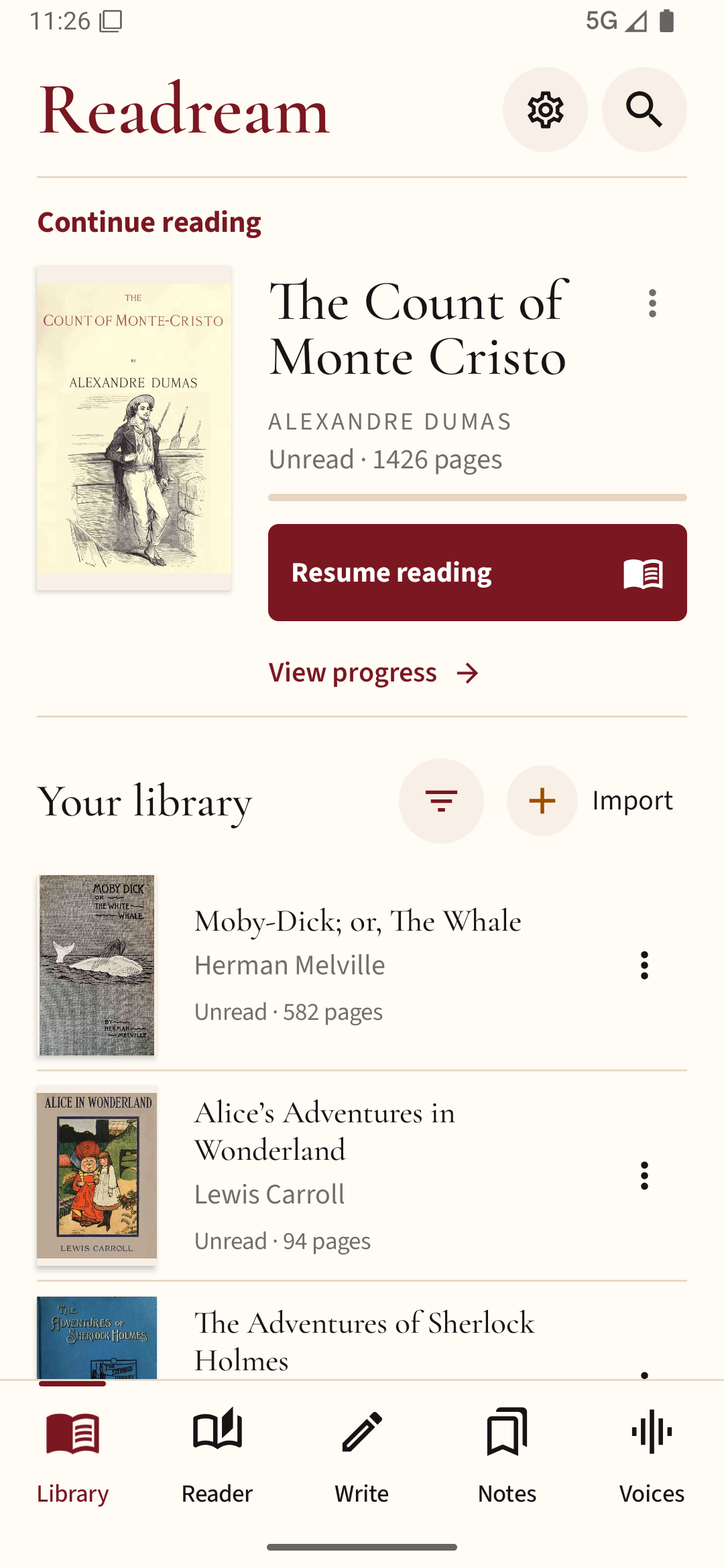
To prepare for an offline reading session, import your EPUB or PDF into Readream Basic, open it once, and check it again with the connection turned off before you leave.